Introduction
The online photo-identification matching application allows you to compare fin images across study sites and present potential matches to the relevant contributors for verification. The following presentations will guide you through the basic usage of the application. The online help below describes more details.
Overview Presentations
- Highlights of PhotoID App (PDF; 5MB)
Highlights of features
- Browse thumbnails of fin images
- Search fin or fluke images of particular interest
- Compare two images side by side
- Process images by zooming in/out, rotating and putting one over the other
- Plot relevant sightings on the map
- Go through the matching workflow
- Identify animals using the identification algorithm by Happywhale.com
Logging in to the application
The full features of the application are available to community members who need to log in to the site with an account. A login name and initial password for the account will be given by the curator.
- Click 'Log in as Contributor' at the upper right corner of the browser window.
- Enter your login name and password to the corresponding boxes.
- Click the [Log in] button.
- When successfully logged in, you'll see 'Logged in as your user name' at the upper right corner of the browser window.
Change password
1. Log in to the OBIS-SEAMAP front page at http://seamap.env.duke.edu.
2. Go to [My Data]. Note that [My Data] tab does not exist in the Photo ID application. Please go to the front page when you are on the Photo ID application.
3. In [OBIS-SEAMAP Account] section, enter a new password into [Password] box.
4. Click [Change password].
Searching and browsing images
Basic steps
- Choose a site for Site 1 and 2.
- In each site, browse fin images. To see detailed information, mouse over the image. Then, a popup shows up with details.

- If you know the dolphin's identifier (e.g. Catalog-wide ID or that assigned by the provider) of the dolphin you are looking for or want to browse fin images with particular fin features or animal characteristics (e.g. male or female), click the Filtering button, set up the criteria and click the Apply Filter button.

- You can change the image size by selecting one of the four options in the Image size button.
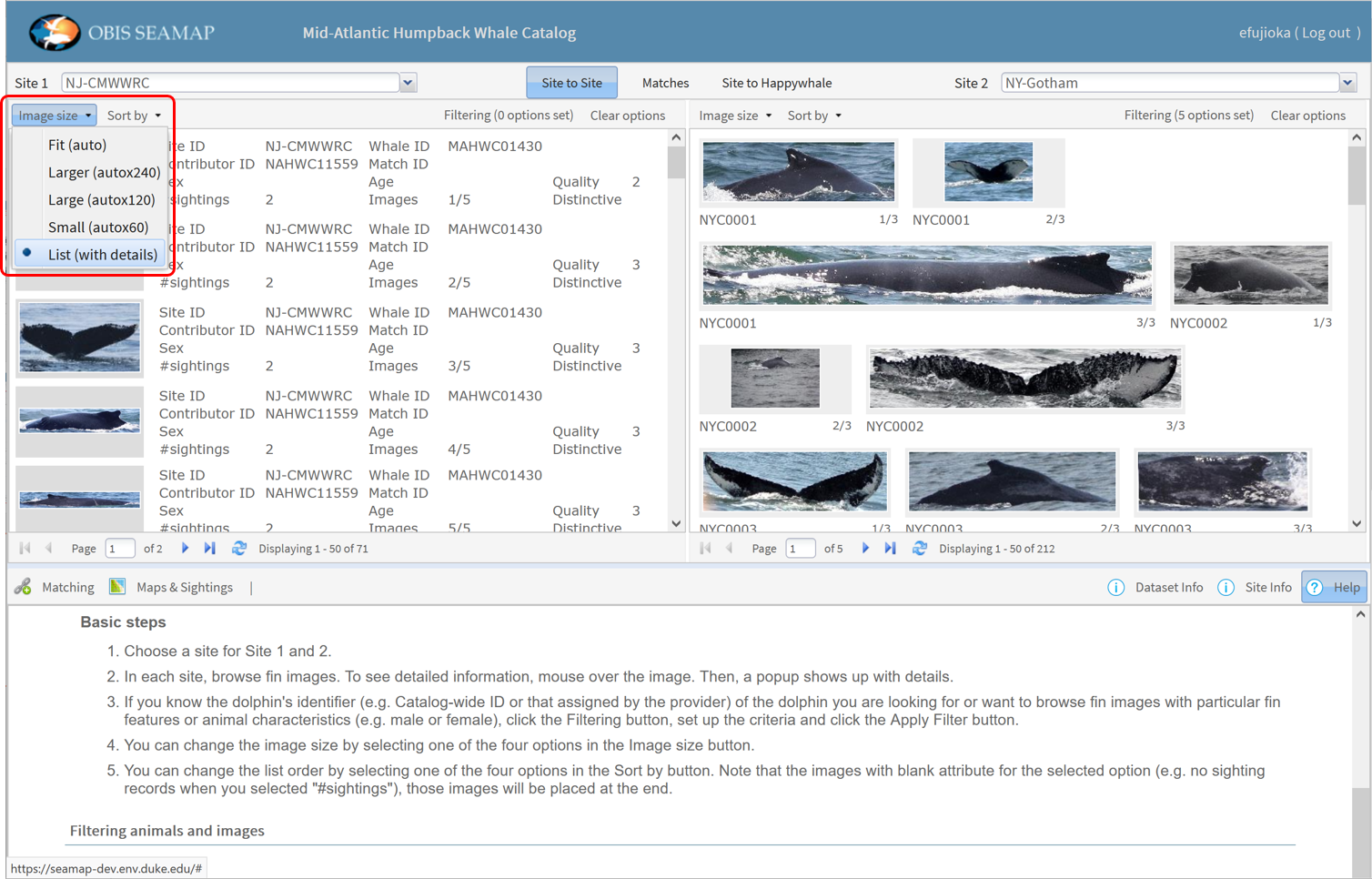
- You can change the list order by selecting one of the four options in the Sort by button. Note that the images with blank attribute for the selected option (e.g. no sighting records when you selected "#sightings"), those images will be placed at the end.
Filtering animals and images
Match state
An Animal that is verified to match with one in another site is assigned a Match ID. Those animals are in a "Verified" state. An animal that is potentially matched with another site but not yet verified is in a "In Review" state. A potential match could be rejected. In this case, those animals are flagged with a "Rejected" state.
You can filter animals based on these states. Note that an animal can be matched with more than one animals from multiple sites. Thus it is possible that an animal has a MatchID (already verified with one site) and also is a "In Review" state with another site.
To address such complexity, there are multiple filtering choices of the match state. Below are some typical choices and their results.
| Verified | In Reivew | Rejected | OR | AND | NOT | ONLY | Which animals are selected? |
|---|---|---|---|---|---|---|---|
| X | X | Animals without Match ID. Could include animals that are in the review state. | |||||
| X | X | Animals with Match ID that are not potentially matched with other sites. | |||||
| X | X | Animals in the review state. Animals with Match ID are excluded. | |||||
| X | X | X | Both animals with Match ID and animals in the review state. Could include animals with MatchID that have been rejected with other sites. | ||||
| X | X | X | Animals with Match ID that are also potentially matched with other sites. | ||||
| X | X | X | Animals that have never been matched. | ||||
| X | X | X | Both animals with Match ID and animals in the review state. Animals that have been rejected are excluded. | ||||
| X | X | Animals whose potential matches were rejected. Animals with Match IDs and those under review are excluded. |
You can also specify which matching sites you are interested in. Assuming you list animals in Site 1 (the left side of the thumbnail panel), the three options in the filtering panel work as:
| Which site? | Which animals are selected? |
|---|---|
| With any sites | Animals that are matched with animals from any sites. |
| With Site 2 | Animals that are matched with animals from the site displayed in Site 2 (the right side of the thumbnail panel). |
| Not with Site 2 | Animals that are matched with animals from any sites other than the site displayed in Site 2. |
Happywhale - MAHWC Only
Animals in MAHWC can be matched / identified with Happywhale animals using the Happywhale Identify feature. There are three states regarding whether the animal is matched with Happywhale animals or not: "Confirmed", "Identified" and "Not Identified Yet". You can filter the animals by these states.
- Confirmed: Fluke image was identified with Happywhale API and the match was confirmed by the curator.
- Identified: Fluke image was identified with Happywhale API but not confirmed.
- Not identified yet: Fluke image has never been identified with Happywhale API.
Comparing and matching up images
Basic steps
- Chose the fin image for Site 1 and 2 (see steps above).
- With various editing tools, align the two images so that they can be overlaid to compare.
- Move the image window to overlay. You can adjust the transparency of the image on top of the other, so you can see through the bottom image better.


- If you feel positive that the two animals are the same animal, click the Submit as Potential Match button.
- Make sure the information displayed in the Submit Potential Match window is correct.
- Click the Submit button.

- A notification email will be sent to the providers of the potentially matched animals as well as the catalog curator. They will verify the match.
- Once the two animals are confirmed the same, a Match ID will be assigned. You will get a confirmation email.
Presenting the potential match-up to the contributors through the matching workflow
Who
- Community members
- Contributors
- Catalog curator
Any member of the community logged in to the online interface can start a fin matching workflow.
States
There are four states for each workflow (match-up). These states are also used to represent the individual member's action history.
- DRAFT
- IN REVIEW
- VERIFIED
- REJECTED
Actions
There are three actions the community members including the contributors and curator take.
- SUBMIT
- CONSENT
- REJECT
Workflow Overview
Once the user has found a potential match, s/he can start a fin matching workflow which involves notifying the contributors who oversee the respective sites that the dolphins were sighted within and requesting that contributors independently verify the match. In this process, a notification email is sent to each of the contributors. The workflow is finalized and the potential match becomes a verified match when all of the designated contributors have verified it. All actions for this workflow are taken online.

Happywhale Identify - MAHWC Only
This feature is available for the MAHWC PhotoID App only.
Happywhale.com and OBIS-SEAMAP collaborated to grow their services to an advanced stage. Happywhale developed a Rest API that makes their machine learning algorithm available to the Internet. Their algorithm allows to identify an individual humpback whale by comparing an fluke image with their huge catalog of animals and images. OBIS-SEAMAP has been providing well-accomplished PhotoID applications for marine researchers. The PhotoID App provides a workspace where curators and collaborators compare their images and go through the matching processes to link animals observed in different study areas.
Now these two services have estabilished mutually beneficial collaborative components that allow PhotoID's matching workflow to incorporate Happywhale's identification algorithm. The Happywhale service (REST API) returns up to 5 potential matches based on unsupervised algorithm for each image of PhotoID App. Thus, it's not the final identification / match. It is curator's role to confirm the match. The curator observes the identification results and make a decision to or not to confirm the matches.
Identify
This action sends out the PhotoID images to Happywhale's service to identify animals within PhotoID App. The Happywhale service returns images and associated information of potential matches with scores representing how identical the fluke images between PhotoID and Happywhale are.
To execute this action,
- Select a site on the Site 1.
- Optionally, select a fluke image within the Site 1 thumbnails. The Happywhale service accepts fluke images only. If a dorsal fin image is selected, an error message will pop up.
- Click [Site to Happywhale] if not yet done.
- Click [Happywhale Identify] button.
- The thumbnails on the Happywhale side will be refreshed and show the potential matches from Happywhale.
- Similar to the matching process between sites, browse and compare the fluke images between the selected site and Happywhale's.
- By selecting an Happywhale image, a larger image is displayed in the workspace where you can edit the image (e.g. adjust brightness or contrast).
- When you find the identical animal between PhotoID App and Happywhale (the images on both Site 1 and Happywhale have to be selected), click [Confirm].
Unlike the matching workflow between sites in PhotoID App, there is no contributors' actions (i.e. consent or reject) needed for the match between PhotoID and Happywhale.
- If you want to cancel the confirmed match, select the animal / image of PhotoID and Happywhale. Then, click [Revoke].
Notes
- Happywhale's images are always shown on the right side of the thumbnail panels.
- Up to 50 fluke images of PhotoID App (maximum number of the images in the thumbnail panel) can be included in a single call to identify with Happywhale.
- The score ranges from 0 to 1 (the API call returns top 5 images order by scores. If there are more than 5 images with the threshold score determined by Happywhale (0.385) or higher, all of them will be returned).
The higher the score is, the more confident the match is.
Score = 1 means the images in PhotoID App and Happywhale.com should be the same (the same image was registered / uploaded into PhotoID and Happywhale.com. - When you confirm the match, no information of the match (e.g. MAHWC ID) is sent to or shared with Happywhale.com.
- All edits for the image in the workspace are temporary and will not be saved.
- If there are animals of PhotoID App that already have confirmed matches with Happywhale's animals, these animals are excluded from the Identify process (the matches remain).
- To identify the animals of PhotoID that already have confirmed matches, you have to revoke the matches, first.
Filtering
You can filter the Happywhale images by attributes. There are three attributes you can adjust.
- Score: Potential match comes with a score. The higher the score is, the more confident the match is. You can narrow down the list to the images with higher scores.
- Happywhale ID: Each Happywhale animal is given a unique ID. You can pick up a particular animal and its images by ID.
- Identifictation state: The matches returned from the Happywhale service are thought to be potential matches. The curator takes a role to choose the best match or confirm the match. Therefore, there are two states of the matches: Potential and Confirmed. You can filter the Happywhale images by these states.
To filter the images,
- Make sure the right side of the thumbnail panels shows the Happywhale images ([Site to Happywhale] is clicked).
- Click [Filtering] button in the toolbar.
- Enter the value(s) or check/uncheck the identification states to filter.
- Click [Apply Filter].
If you want to go back to the initial list of images, there are two ways to clear the filtering settings.
- Click [Clear Options] button at the toolbar.
- If the filtering panel is open, click [Clear Filter] button at the bottom of the panel.